Correcting Payroll
Calculate Adjustment
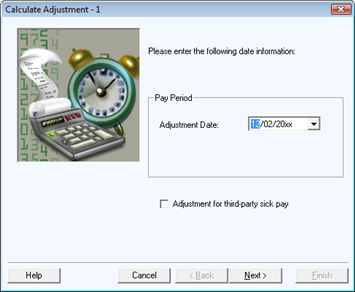
Use the Calculate Adjustment when you need to make changes to a person's pay history. This can be used when you begin to use the payroll program, if you’re beginning in the middle of a year. You can also use the Calculate Adjustment to edit a person's totals or pay history or to enter sick pay paid by a third party.
|
|
If you will need to reproduce quarterly payroll reports from the Payroll program, you may want to enter an adjustment as of the end of each quarter. Click in the Adjustment for third-party sick pay box if you are recording those payments to an employee. The program adjusts the 941 report federal taxes withheld by the third-party from your employee's pay. |
|
Edit hours, pay rates, deductions, and allowances to adjust year-to-date activity.
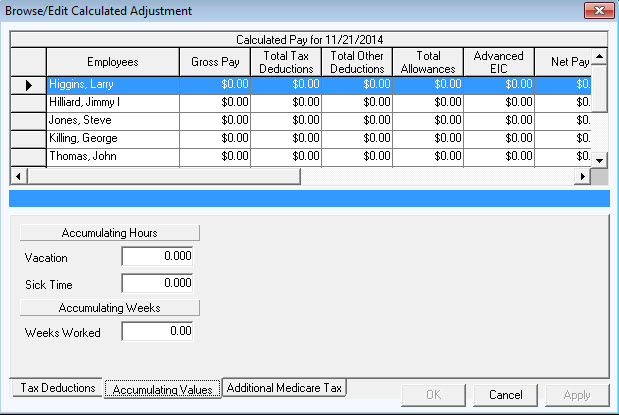
If you click on the Browse Adjustment(s) button, you will see the following screen. This is if you need to make an adjustments to either the amount of tax withheld, or the amount of taxable wages that appear on the W-2 form.
This feature can be used to adjust the total hours (or other units) the employee currently has for the entire year. Entering a positive or negative amount in the vacation or sick time fields will adjust their balance by that amount. If you calculate an adjustment for the vacation or sick time at the start of the year, you will then be able to use those pay types throughout the year and the program will adjust the amounts down automatically as you pay them out.
If you have more than one employee's record to edit, click on Apply to save the edited amount. Continue making changes as necessary by clicking on the next person in the list. Click OK after all changes are saved and you are done with these adjustments.
Calculate Adjustment provides the same options for posting, editing, or discarding a calculation as Calculate Payroll allows.
If you do not need to post the adjustment to Accounting (for instance, Accounting already reflects the activity associated with this adjustment, or the adjustment has no need to reflect any account activity), delete this adjustment when the Transfer to Accounting screen comes up.
|
|